How to Swap on PancakeSwap Using Trust Wallet
A Practical, Step-by-Step Guide for Safe Decentralized Token Trading
Preparing Trust Wallet and Setting Up the Correct Binance Smart Chain Connection
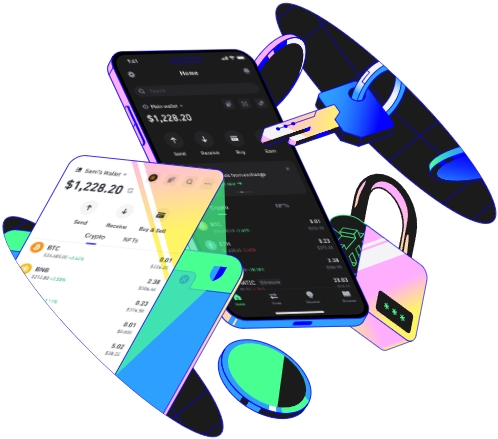
Before you dive into swapping, you need to ensure your Trust Wallet is properly set up and connected to the right blockchain—PancakeSwap runs on the Binance Smart Chain (BSC), so using Ethereum will lead to failed transactions or lost funds. First, download Trust Wallet only from its official app store page (iOS App Store or Google Play) to avoid fake apps that steal crypto. Once installed, create a new wallet, and write down your 12-word recovery phrase on a physical piece of paper—never store this phrase digitally, as hackers can access it easily. If you lose your phone, you can use the 12-word phrase to restore your wallet on any other device; this is the only way to recover funds, so never lose that paper. I learned this the hard way: a few years ago, a colleague of mine saved his recovery phrase in a cloud note, and his wallet was drained within an hour. After creating the wallet, you need to add BNB to it, since BNB is used to pay for transaction fees (gas) on BSC. If you have BNB on a central exchange like Binance, withdraw it to your Trust Wallet address, but make sure to select the BEP20 network (not BEP or ERC20) when withdrawing. Last month, a friend tried to swap a new token on PancakeSwap but forgot to pick BEP20; his BNB ended up on the wrong chain, and he had to wait three days to retrieve it via a cross-chain bridge. Once you have BNB in your wallet, confirm that Trust Wallet is using BSC: go to the settings menu, select “Networks”, and check that “Binance Smart Chain” is toggled on. If it’s not listed, you can manually add it by entering the BSC details—Chain ID 56, RPC URL https://bsc-dataseed.binance.org/, symbol BNB, and block explorer bscscan.com. This step is non-negotiable; without the right network, every swap attempt will fail.
Navigating PancakeSwap and Configuring Swap Parameters for a Smooth Trade
Next, open the PancakeSwap platform through Trust Wallet’s built-in browser—this ensures your wallet connects seamlessly without manual QR code scanning. Type “pancakeswap.finance” into the browser bar, and when the page loads, tap the “Connect Wallet” button in the top right corner. From the pop-up menu, select “Trust Wallet” and confirm the connection request on your phone; this gives PancakeSwap permission to interact with your wallet, but it’s safe as long as you’re on the official site. Once connected, navigate to the “Swap” tab—this is where you’ll input the tokens you want to swap. For example, let’s say you want to swap 0.5 BNB for a new memecoin called XYZ that just launched on PancakeSwap. In the “From” field, select BNB (it’s probably already shown, but if not, search for it by name or contract address), then enter the amount you want to swap. In the “To” field, search for XYZ’s contract address—never use the token name alone, as many scams have similar names. Always verify the contract address on PancakeSwap’s token list or BscScan before entering it; scammers often create fake tokens with almost identical names and different addresses. Now, adjust the slippage tolerance: tap the small gear icon in the top right of the swap screen, and set slippage to 1-5% depending on the token’s liquidity. For low-liquidity tokens like new memecoins, set 3-5% slippage; using the default 0.5% will almost always cause your transaction to fail because the token’s price moves quickly between when you confirm the swap and when it’s processed. Last week, I swapped a new gaming token and set slippage to 4%—if I’d used 0.5%, my transaction would have reverted immediately, and I would have lost the gas fees. Also, double-check the token amounts: the “To” field will show how much XYZ you’ll receive based on the current exchange rate, but remember that rates shift fast on BSC, so confirm before proceeding. Don’t forget to check the gas fee estimate here too—this will give you an idea of how much you’ll pay for the transaction, which is usually under $1.
Finalizing the Swap and Verifying Its Success to Avoid Mistakes
Before clicking “Swap”, take a final look at the details: the amount you’re sending, the amount you’ll receive, the gas fee, and the slippage setting. Gas fees on BSC are usually low (around $0.10-$0.50), but you can adjust the gas speed in Trust Wallet’s transaction settings—“Standard” is usually the best balance between speed and cost; “Fast” is only for urgent swaps. If a transaction fails, you won’t lose your BNB, but you will lose the small gas fee—so double-check all parameters before confirming to avoid wasting fees. Once you’re sure everything is correct, tap “Swap” and confirm the transaction on your Trust Wallet. You’ll see a pop-up showing the transaction being processed; wait a few seconds for it to be validated on the BSC network. To check the transaction status, tap the “View on BscScan” link in the Trust Wallet pop-up—this will take you to the BSC block explorer, where you can see if the transaction is pending, confirmed, or failed. If it’s pending, you can speed it up by increasing the gas fee, but only if you’re sure. If the transaction is confirmed, the tokens should appear in your Trust Wallet balance within a minute, but sometimes new tokens take longer to show up. If they don’t, you need to add the custom token to your Trust Wallet: go to the “Tokens” tab, tap “Add Custom Token”, select BSC as the network, and paste the token’s contract address. This is a common step for newly listed tokens, as Trust Wallet doesn’t automatically recognize every new token. A few weeks ago, I swapped for a new NFT-related token and had to add its contract address to see it—without that, I would have thought my swap failed, and I might have tried to redo it, wasting more gas. Finally, always keep the transaction hash (the unique ID from BscScan) in case you need to dispute a failed transaction or retrieve lost funds. This step ensures you know exactly what happened with your swap, even if something goes wrong, and gives you proof of the transaction for future reference.
TAG:
