How to Use Trust Wallet Extension on Brave Browser
A Step-by-Step Guide to Set Up and Navigate This Crypto Tool
Prerequisites and Installing Trust Wallet Extension on Brave
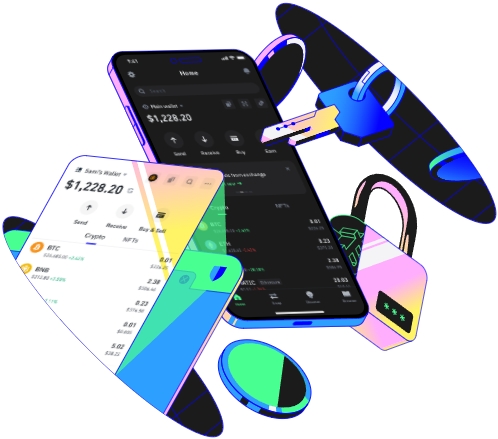
Before you start, make sure your Brave browser is updated to the latest version—older versions may not support the latest features of the Trust Wallet extension, including enhanced security settings. Brave’s base is built on Chromium, so you’ll access extensions through the Chrome Web Store, which is fully integrated with Brave. Here’s the step-by-step installation process: Open your Brave browser and click the three horizontal dots in the top-right corner to pull up the main menu. Hover over “Extensions” and select “Manage Extensions” from the dropdown. On the Extensions page, click the link to open the Chrome Web Store, as this is where official Trust Wallet is hosted. Search for “Trust Wallet” in the store’s search bar, and look for the official extension—its icon is a white background with a blue “T” logo, and the developer is listed as Trust Wallet LLC to avoid fake versions. Once you find the official extension, click “Add to Brave” and wait for the installation to complete. A permission prompt will pop up asking for access to your website data; this is necessary for the extension to connect to decentralized applications (DApps) later. On my first try, I accidentally clicked “Allow on all sites” without reading, which was a mistake. I later adjusted this in the extension settings to “Click to allow”—this means the extension only connects to sites when I explicitly trigger it, adding a layer of security. After installation, you’ll see the Trust Wallet icon appear in Brave’s top-right toolbar.
Initial Setup and Critical Security Configurations
Clicking the Trust Wallet icon will open the extension’s welcome screen, where you’ll have two main options: “Create New Wallet” or “Import Existing Wallet.” For first-time users, select “Create New Wallet” to generate a unique, secure wallet. The next step will display your 12-word secret recovery phrase (also called a mnemonic phrase)—this is the single most important element of your wallet, as it’s the only way to recover your funds if you lose access to the extension or device. Never store this phrase on any electronic device, including your phone, laptop, or cloud storage. A friend of mine named Mike learned this the hard way last year: he saved his secret phrase to an iPhone note, and when his phone was stolen, the thief drained his 2 ETH and several ERC-20 tokens. I once made a smaller mistake here too: I took a screenshot of the phrase to my phone to “keep it handy,” but later realized my phone’s cloud backup could have exposed it. Instead, grab a physical notebook, write down each word exactly as it appears (no typos), and store the notebook in a secure, private place like a fireproof safe. After writing the phrase, you’ll be asked to confirm it by selecting the words in the correct order. Next, set a strong password for the extension—at least 8 characters, with a mix of uppercase, lowercase, numbers, and symbols. Avoid reusing passwords from other accounts, as a breach of one service could put your wallet at risk. You’ll also have the option to enable biometric authentication (fingerprint or facial recognition) if your device supports it; this makes logging in faster without sacrificing security. Finally, enable the “Hide Small Balances” setting if you want to keep your portfolio private from anyone who uses your device.
Daily Operations and Key Features to Leverage
Once set up, the Trust Wallet extension in Brave works seamlessly for all your crypto needs. Let’s cover the most common daily tasks: First, receiving tokens is straightforward—click the “Receive” button, select the blockchain (like Ethereum, BSC, or Polygon) for the token you want to receive, and copy the wallet address or scan the QR code. Note that Trust Wallet uses the same base address for multiple chains, so always confirm the chain when receiving to avoid lost funds. For example, I recently received BNB on the BSC chain, and it arrived in my wallet within 30 seconds, whereas Ethereum transactions take longer depending on gas fees. Sending tokens is almost as easy: click “Send,” paste the recipient’s address, and double-check the first four and last four characters to avoid typos. Scammers often create fake addresses that look almost identical to official ones, so this quick check can save you from losing funds. I once almost fell for a Discord “airdrop” link that had a fake address with one extra character; catching that mistake prevented a major loss. Next, connecting to DApps like Uniswap or OpenSea is where the extension shines. When you’re on a DApp’s official site, look for a “Connect Wallet” button, select “Trust Wallet” from the options, and authorize the connection. Always verify the site’s URL—look for the padlock icon in Brave’s address bar to confirm it’s secure, as fake DApps often mimic official ones to steal your funds. Brave’s built-in privacy features add an extra layer here, since it doesn’t track your browsing data, so your DApp interactions stay more private than on Chrome. You can also switch between different blockchains in the extension with one click, which is useful for managing cross-chain assets. Another handy feature is the transaction history tab, where you can track all incoming and outgoing transfers, check gas fees, and confirm when transactions are finalized. One thing to note about gas fees: when making transactions on busy chains like Ethereum, gas fees can spike unexpectedly. I learned this when I tried to mint an NFT last month—using the default medium gas fee took 5 minutes to confirm, but if I had used a higher priority fee, it would have gone through in 30 seconds. The extension lets you adjust gas levels manually, so don’t be afraid to tweak this if you’re in a hurry. Finally, avoid using the Trust Wallet extension in Brave’s public or incognito windows unless you have a specific reason, as these windows are less secure for storing sensitive wallet data. If you ever need to back up your secret phrase again, you can find the option in the extension’s settings, but only do this in a private, secure environment—never on a public computer.
TAG:
