How to Receive Crypto on Trust Wallet: Full Guide
Simple steps to safely add crypto to your Trust Wallet
Prep Your Trust Wallet for Receiving Crypto
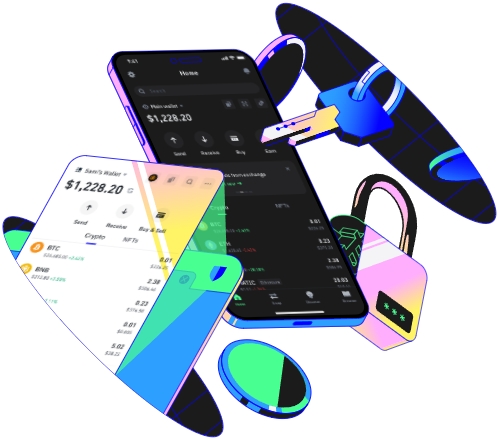
Before you can receive any crypto in Trust Wallet, you need to ensure your wallet is properly set up and running the latest app version to avoid compatibility issues. Skip third-party sources for the app; download it from the official Apple App Store, Google Play Store, or Trust Wallet’s official website. Once installed, log in with your 12 or 24-word recovery phrase – never share this phrase with anyone, as it grants full access to your funds. New users should create a wallet, write the recovery phrase in an offline physical notebook, and confirm it when prompted. Also, verify the token you want to receive is supported. Trust Wallet works with major coins like Bitcoin, Ethereum, and stablecoins such as USDT, but smaller altcoins may need manual addition. To add a token, tap “Manage” on the main tokens screen, search for its name or contract address, and toggle it on so it appears in your wallet’s list. Skipping this step means you may not see the crypto even if the transfer is successful.
Find the Correct Crypto Address and Matching Network
This is the most critical step, as using the wrong address or blockchain network leads to permanent loss. Take USDT as an example: Trust Wallet offers two common versions, ERC20 (Ethereum network) and TRC20 (TRON network). Each has a unique address, and sending ERC20 USDT to a TRC20 address will result in lost funds. To find your token-specific address, open Trust Wallet, select the token you want to receive (e.g., “USDT”), then tap the “Receive” button. You’ll see your unique address, a QR code, and the associated network listed clearly – double-check this network. For Bitcoin, addresses start with 1, 3, or bc1 and use only the Bitcoin network, so no extra selection is needed. For coins like XRP or Stellar (XLM), you’ll also need a memo or tag. If receiving from an exchange, input this memo when prompted on the exchange’s withdrawal page; missing it can cause stuck transfers. For instance, when getting XRP from Binance, your Trust Wallet XRP memo is required, not just the address. Never copy addresses from random websites – always pull them directly from your Trust Wallet app.
Verify the Transfer and Confirm It’s in Your Wallet
After sharing your correct address (and memo/tag) with the sender, wait for the transaction to process and confirm it’s in your wallet. Different blockchains have varying confirmation times: Bitcoin needs 1–6 confirmations, taking 10 minutes to an hour depending on network congestion; Ethereum usually takes a few minutes; TRC20 stablecoins confirm almost instantly. To track the transfer, use two methods: first, check the blockchain explorer. Copy the transaction ID (TXID) from the sender’s confirmation, go to a trusted explorer like blockchain.com (Bitcoin), etherscan.io (Ethereum), or tronscan.org (TRON), paste the TXID, and confirm it shows as “confirmed”. Second, check Trust Wallet’s activity tab: select the received token, and look at the activity feed for the transfer. If the crypto doesn’t appear within a few hours, common issues include unconfirmed transactions, a disabled token in your wallet, or the wrong network used. If the network is wrong, contact the sender immediately to get the correct address for the right chain. For large transfers, test with a small amount first: if someone is sending 1 BTC, ask for 0.001 BTC first to confirm the address works, avoiding major losses from mistakes. This extra step saves you from losing thousands of dollars due to a simple address error.
TAG:
